Color Contrast / Reverse Contrast
Accommodation
Description
Allows a student to select the appropriate color contrast or reverse contrast. PNP only.
Answer Masking
Allows a student to hide or show answer choices to help them eliminate incorrect answers. PNP only.
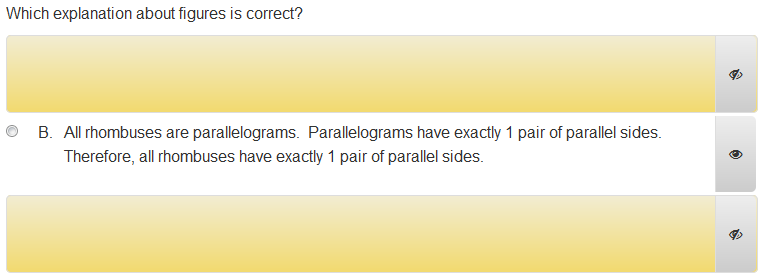
Line Reader Mask
Allows students to use a line reader to help students focus on selected text by blocking surrounding text. The line reader can be adjusted to focus on a single line, multiple lines, or just a few words.
Available on PNP and Test Properties. If the line reader is enabled in Test Properties, it will be available on a test regardless of a student's PNP.
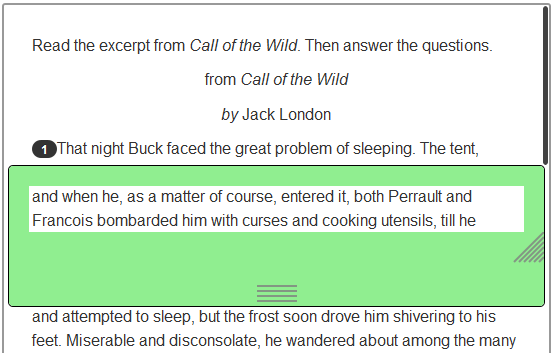
Magnifier
Allows students to use a magnifier. Students can drag the magnifier to view different areas of the test question. Available on PNP and Test Properties. If the magnifier is enabled in Test Properties, it will be available on a test regardless of a student's PNP.
Text to Speech
Important: Text to Speech must be enabled in both Test Properties and a student's PNP to be available for a student.
Reads question content aloud to students. Test item creators can enter alternate text to be read for a word, math equation, image, audio file, or table. For tables, alternate text can be entered for content within the table or the entire table (in Table Properties). If alternate text is entered for both, only the alt text for the entire table will be read. Test instructions, question text, passages, answer choices, and task instructions and activity headings will be read to the student. Labels will be read for Gap Match, Inline Response, and Hotspot items. For passages, Text to Speech can be disabled, but will be enabled by default if Text to Speech is enabled for the rest of the test.
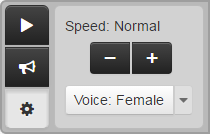
Text to Speech playback buttons will appear on the right side of the screen in TestNav. A male or female voice can be selected, and reading speed can be made slower or faster. The Click to Hear (middle) button allows students to select a specific line of text to hear. The playback buttons will be available on the Test Instructions page for tests that have instructions.
The Text to Speech feature may not always pronounce words correctly. Refer to the phonetic guide and use alternate text to improve pronunciation. Alternate text can also be used to describe math equations, images, audio files, and tables.
In Test Properties, English or Spanish pronunciation can be selected. The test-level setting will override the item-level Question Language. This setting determines only the pronunciation of question content; it does not translate question content. A warning message will appear if the test and item settings differ.
Text to Speech is not supported with the scramble answer choice functionality.
Extra Testing Time
Gives students extra time to complete a test. You can give them an extra percentage of time or unlimited time.
Calculators
Makes one or more calculators available to the student: four-function, five-function, or scientific. The selected calculators will appear on any test the student is assigned, regardless of the test or item settings. Available on PNP and Test Item Defaults > Tools & Manipulatives. Note that TI and Desmos calculators, if used in your system, can only be enabled when creating tests, not via student PNP.
 Related Topics