 Watch a video
Use Answer Sheet Scanning to scan student answer sheets using a webcam or document camera. Answer Sheet Scanning is available only if it is supported in your system. Scanners are supported for all users, but camera scanning is only available if used in your system. If you are not sure if the scanner or webcam you are using is supported, please refer to the Schoolnet System Requirements.
Installation: You will be prompted to install the Answer Sheet Scanning application the first time you access it. If a previous version is already installed, you must first exit the application and then uninstall it. To exit the application in Windows, right-click the Answer Sheet Scanning icon on the right side of the Windows taskbar, and then click Exit. Then uninstall the Answer Sheet Scanning application from Control Panel > Uninstall or Remove a Program.
You can access the Answer Sheet Scanning solution in one of the following ways:
Chrome, Firefox, and Safari are supported. Internet Explorer is not supported.
To scan answer sheets with a document camera
When you position an answer sheet, green boxes will appear around areas on the answer sheet that are successfully captured. A red box with an X through it indicates an invalid QR code or invalid student ID.

If you have multiple devices, you can switch between them in the Scan using dropdown menu.
The Document Camera tracks invalid responses (for example, too many bubbles filled in on a multiple choice question) and uses this information on some Schoolnet reports, notably, the Standards Mastery report in Classrooms. When a teacher updates or deletes a response that was marked as invalid, or when test results with invalid responses are deleted, then the response or test results are no longer tracked as invalid.
See error messages
The following table lists the errors and warnings you may encounter. Tests with warnings will be submitted to Schoolnet, but tests with errors will not be submitted. Invalid student responses are submitted to Schoolnet as empty responses. Submitted tests can be viewed and modified on the Score page in Schoolnet. Tests that could not be scanned or submitted can be scored on the Score page.
An answer sheet requires the following for a successful scan:
No bubbles are filled in, or an answer could not be read. You can edit the answer or submit the test with a blank answer.
Student ID is blank.
What are some tips for scanning?
Why can't I get past the download screen?
If you can’t get past the installation page, the application may not have installed properly. Try rerunning the installer with the Repair option. You can also uninstall the Answer Sheet Scanning application, and then re-install it (exit the application before uninstalling it).
Why do I see an error page?
If you see an error page when you go to Answer Sheet Scanning:
What test item types are supported?
The Answer Sheet Scanning solution supports the following item types:
How are open response questions handled?
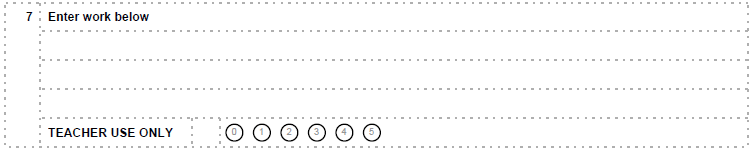
Open response questions can be configured so that students can enter their answers on the answer sheet (from three lines up to 10 pages), or answer in the test booklet or elsewhere and submit their answer to the teacher. The teacher will fill in numbered bubbles in the TEACHER USE ONLY scoring area on the answer sheet to award points, or the teacher can enter the points on the Score page in Schoolnet.
Student answers and teacher comments written on answer sheets will not be saved to Schoolnet.
For open response questions with rubrics, the rubric name appears when you hover over the column number, and the trait name appears when you hover over the trait weight or any of the bubbles.
In the following example, the student can write directly on the answer sheet, and the teacher can award up to five points.
Why can't I scan answer sheets for some tests?
You may or may not be able to scan answer sheets with a document camera based on the following:
What are the guidelines for filling in bubbles?
Marks that will scan include:
Marks that may not scan correctly include:
Why does my camera have the wrong name?
The name of your camera is determined by your computer, not the scanning application. It may appear differently in different browsers, but should not affect operation.
What browsers can I use?
You can use any of the browsers supported by Schoolnet to run the Answer Sheet Scanning solution, with the exception of Internet Explorer, which is not supported. You should only use one instance of a single browser at a time. Issues can occur when a physical device, such as a camera, is used in more than one browser at a time.
Copyright © 2021 Pearson Education, Inc. or its affiliate(s). All rights reserved.